
First steps for undelivered system emails:
- Check with the SI Records for notifications and see if there is an error.
- Check your spam folders
- Check to see if other WP emails are being delivered to the email address you used for testing. For example, a password reset for that WP account.
- Check to see if core WP emails are being sent without Sprout Invoices active. For example, a password reset with the plugin (and add-ons) deactivated.
- Check to make sure the email the notification is being sent is not the same email address as your admin account for your WordPress install. Some servers will have issues with this and won’t send the email if the emails match.
If emails are not sent consider using an SMTP service and plugin for your site –
Recommended Service: SendGrid (documentation)
I highly recommend SendGrid because it’s free up to 12K emails, that’s a lot. Plus they work with email providers to increase deliverability.
Recommended Plugin: WP Mail SMTP
Requires you have an SMTP server/service.
Totals Format
“.00” is filtered out on estimates/invoices to make things look better. However, this could cause issues with custom money formats. Use this filter to remove that filter.
Security header is not valid
This is a PayPal API error which signifies your API credentials are invalid, check to make sure that you have the correct credentials for the correct mode. PayPal doesn’t allow you to use your live credentials within sandbox mode. If this doesn’t help solve the error you will need to contact PayPal, we’ve seen 1/100 times an account needs to be manually approved by PayPal for API access first.
Fatal error: Allowed memory size of 41943040 bytes exhausted (tried to allocate 90568 bytes) in…
Your memory limit for your site needs to be increased. Here are a few methods to accomplish this, we recommend you start with step one and if it doesn’t work continue to the next method (reverting what you did in the previous step):
1. Edit your wp-config.php file and enter something like:
define('WP_MEMORY_LIMIT', '96M');
Read more about this on wordpress.org, found on the wp-config wiki.
2. If you have access to your server’s PHP configuration file, you can change the line in PHP.ini
If your line shows 16/32M try 64M:
memory_limit = 64M ; Maximum amount of memory a script may consume (64MB)
3. If you don’t have access to the PHP.ini file try adjusting your .htaccess file:
php_value memory_limit 64M
4. If those all fail to produce results you’ll need to talk to your host.
404 Page (plus Redirection plugin)
When viewing some estimates and invoices you’re may be redirected to a 404 or the homepage if you’re using the Redirection plugin. The cause of this is a setting called “Monitor changes to posts”, set this to not monitor changed posts and the bad redirects should be fixed.
Payments Report Error or Payment Management Screen not loading
The two errors shown below can be attributed to invoices with payments being deleted.
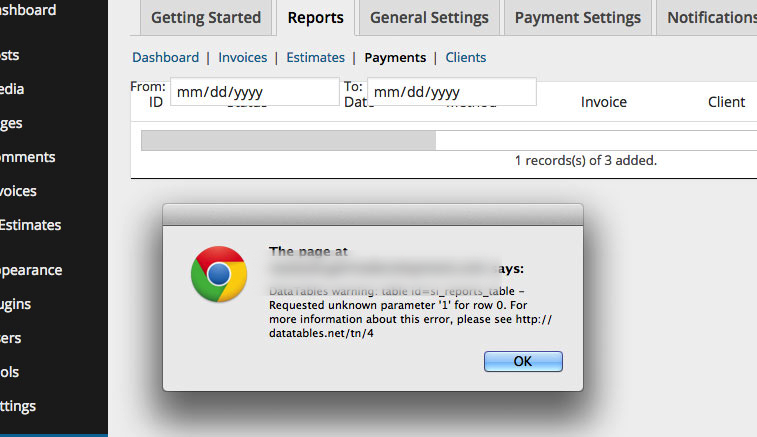

What you will need to do is manually delete these orphaned payments by going to a hidden admin – http://[yoursite.com]/wp-admin/edit.php?post_type=sa_payment
Just make sure to delete the payments that are associated with the missing invoice.
FreshBooks import stuck on 0%
Upon attempting an import from Freshbooks the import may stall and you’re error logs will report something like this…
FastCGI sent in stderr: "PHP message: PHP Fatal error: Class 'XmlDomConstruct' not found in ... while reading response header from upstream, client: 2001:470:8c62:beef:8eae:4cff:feff:160c, server: localhost, request: "POST /wp-admin/admin-ajax.php HTTP/1.0", upstream: ...
This is the result of the bundled FreshBooks API library using PHP short tags. You can either adjust the XmlDocumentConstruct library or turn on short_opentags within your PHP configuration.